
 2306
2306قد يواجه المستخدمون المحليون بعض التحديات عند محاولة تسجيل الدخول إلى موقع TikTok الرسمي، نظرًا لأن الوصول إلى TikTok في البر الرئيسي للصين مقيد. ومع ذلك، من خلال بعض الطرق الإبداعية، لا يزال بإمكان المستخدمين محاولة الوصول إلى TikTok واستخدامه. إذًا، كيف يمكن تسجيل الدخول إلى موقع TikTok الرسمي؟ يكفي خط إنترنت واحد مع 3 طرق لحل الأمر بسهولة!
خط إنترنت واحد: بناء شبكة خاصة لـ TikTok
قبل البدء، تحتاج إلى التأكد من أن جهازك (هاتف أو كمبيوتر) يمكنه الاتصال بالإنترنت الخارجي للوصول بشكل طبيعي إلى موقع TikTok الرسمي. لذلك، يجب التواصل مع مزود خدمة TikTok محترف لبناء خط إنترنت خاص خارجي لـ TikTok، مع عنوان IP مستقل لمنع حظر الحساب، وسعة تحميل تصل إلى 5 ميجابت/ثانية لضمان عدم انقطاع البث المباشر.
3 طرق:
الطريقة الأولى: التسجيل باستخدام البريد الإلكتروني (بريد إلكتروني خارجي)
1. افتح موقع TikTok الرسمي: أدخل https://www.tiktok.com في المتصفح وافتحه.
2. انقر على زر تسجيل الدخول: ابحث عن زر "تسجيل الدخول" في الزاوية اليمنى العليا من الصفحة وانقر عليه.
3. اختر التسجيل بالبريد الإلكتروني: في واجهة تسجيل الدخول، اختر خيار "التسجيل باستخدام البريد الإلكتروني".
4. املأ معلومات التسجيل: أدخل عنوان بريدك الإلكتروني، وقم بتعيين كلمة مرور آمنة. يجب استخدام بريد إلكتروني خارجي للتسجيل بنجاح، ويُوصى باستخدام بريد Outlook لتسهيل عملية التسجيل.
5. أكمل عملية التسجيل: اتبع تعليمات الموقع لإكمال عملية التسجيل، بما في ذلك التحقق من البريد الإلكتروني.
6. سجل الدخول إلى حسابك الجديد: بعد اكتمال التسجيل، استخدم بريدك الإلكتروني وكلمة المرور لتسجيل الدخول إلى TikTok.
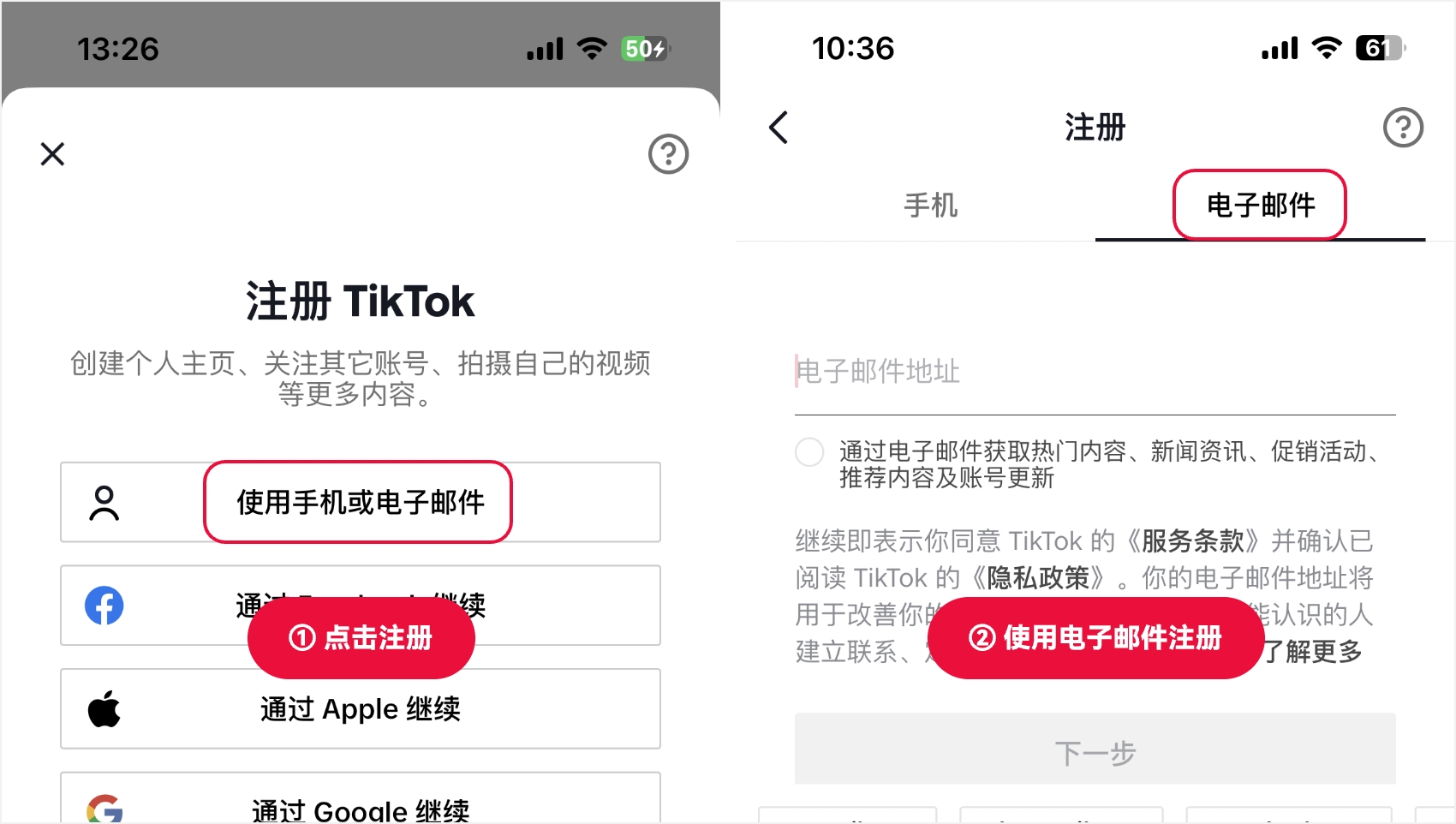
الطريقة الثانية: التسجيل باستخدام رقم الهاتف (رقم هاتف غير صيني)
1. جهز رقم هاتف غير صيني: نظرًا لأن TikTok يمنع التسجيل بأرقام الهواتف الصينية، تحتاج إلى تحضير رقم هاتف غير صيني.
2. قم بزيارة موقع TikTok الرسمي: أدخل عنوان موقع TikTok الرسمي في المتصفح وافتحه.
3. اختر التسجيل برقم الهاتف: في واجهة تسجيل الدخول، اختر خيار "التسجيل برقم الهاتف".
4. أدخل رقم الهاتف: أدخل رقم هاتفك غير الصيني، واحصل على رمز التحقق.
5. قم بتعيين كلمة المرور: أدخل رمز التحقق الذي تلقيته وكلمة المرور التي قمت بتعيينها لإكمال التسجيل.
6. سجل الدخول إلى الحساب: بعد اكتمال التسجيل، استخدم رقم هاتفك وكلمة المرور لتسجيل الدخول إلى TikTok.
الطريقة الثالثة: تسجيل الدخول باستخدام حساب طرف ثالث
1. تعرف على خيارات تسجيل الدخول عبر الطرف الثالث: يدعم TikTok تسجيل الدخول باستخدام حسابات طرف ثالث مثل حساب Google أو Facebook أو Twitter.
2. اختر تسجيل الدخول عبر الطرف الثالث: في واجهة تسجيل الدخول إلى TikTok، اختر "التسجيل بحساب طرف ثالث".
3. سجل الدخول إلى حساب الطرف الثالث: أدخل معلومات حساب الطرف الثالث لتسجيل الدخول.
4. انتبه للمخاطر: قد يشكل تسجيل الدخول باستخدام حساب طرف ثالث مخاطر أمنية على الحساب، حيث أن حالة خدمات الطرف الثالث قد تؤثر على حسابك في TikTok.
على الرغم من وجود بعض القيود، إلا أنه من خلال خط الإنترنت الواحد والطرق الثلاث المذكورة أعلاه، لا يزال بإمكان المستخدمين المحليين محاولة الوصول إلى موقع TikTok الرسمي واستخدامه. يرجى تذكر أن التطورات التكنولوجية والتغيرات في السياسات قد تؤثر على فعالية هذه الطرق، لذا يُنصح بالاطلاع على أحدث المعلومات والإرشادات قبل المحاولة. في الوقت نفسه، تظل حماية المعلومات الشخصية وأمان الحساب أولوية عند استخدام أي خدمة عبر الإنترنت.